Workspaces
A workspace is an isolated cloud development environment provisioned for a specific user. Each workspace is created from an origin — either a blueprint (a predefined configuration set by your administrator) or a Git repository — and comes preloaded with dependencies, applications, and a terminal. You can run applications, manage files, and connect to services running inside the workspace, all from the browser.
Listing Workspaces
Navigate to the homepage by clicking the application logo in the top-left corner. Your workspaces are listed here.
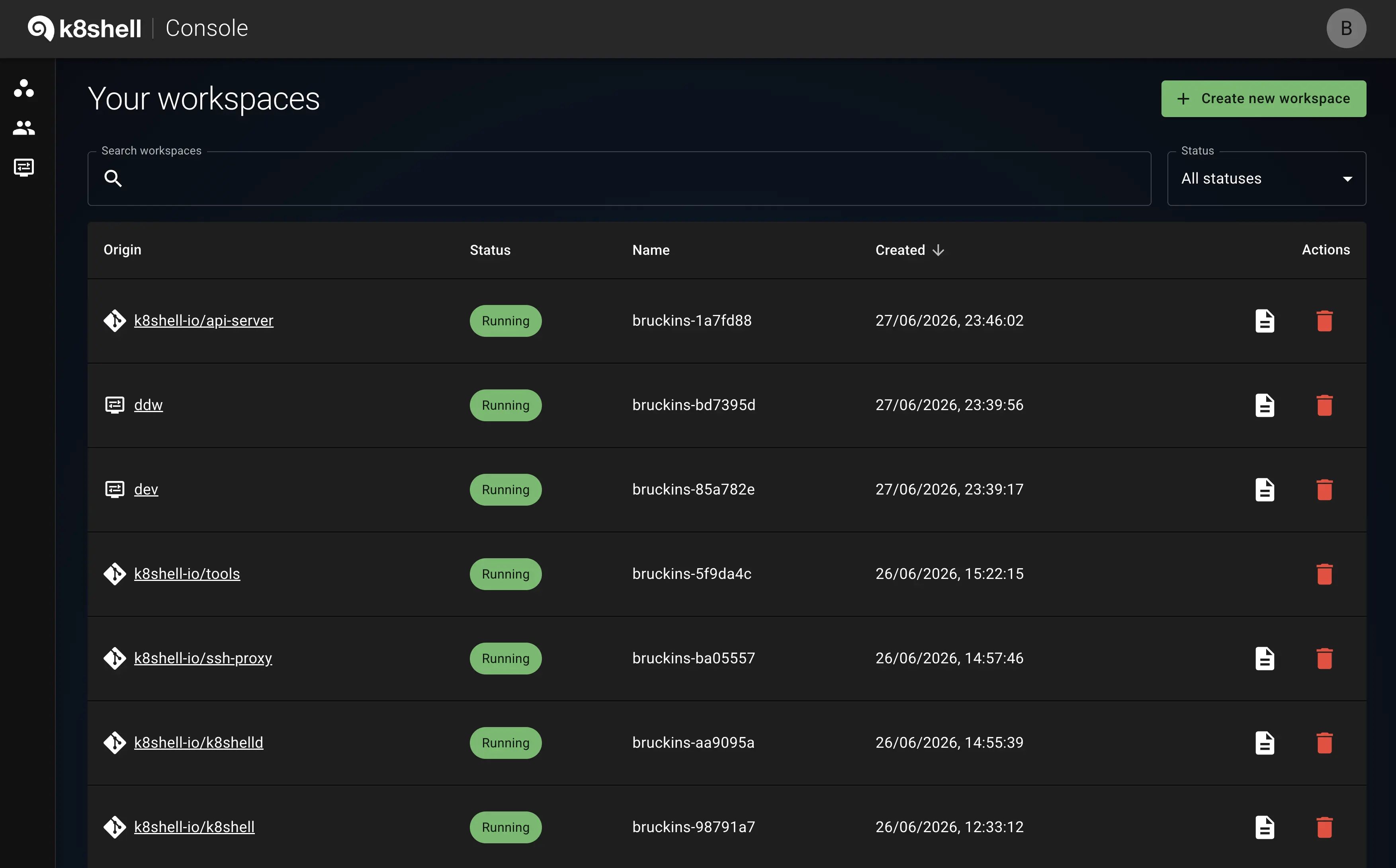
Available actions per workspace:
- Click the workspace to open its dashboard.
- Click the file icon in the
Actionscolumn to view installation logs. - Click the red trash can icon to delete the workspace.
Workspace Dashboard
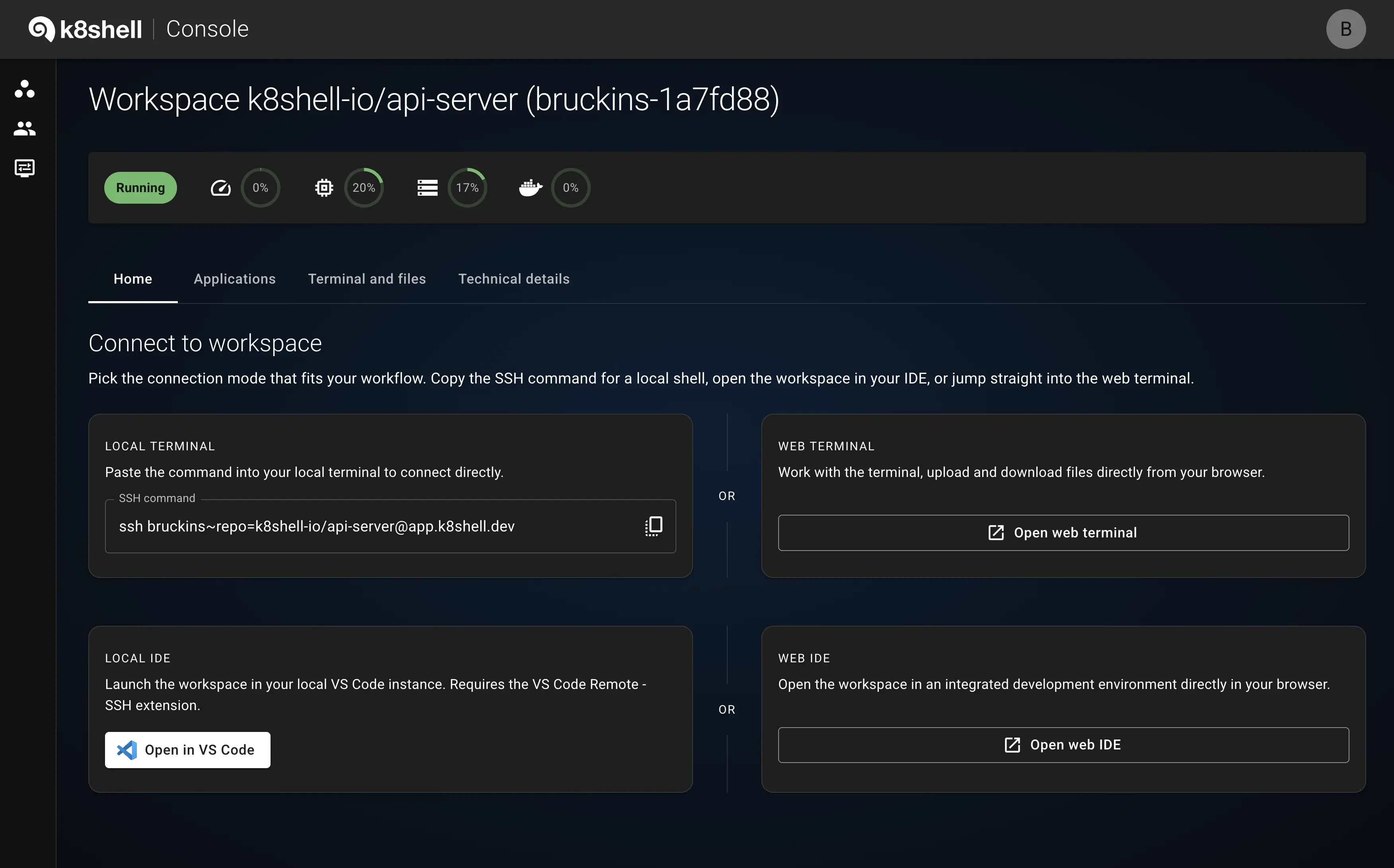
Click a workspace to open its dashboard. Use the tabs to switch between Applications, Terminal and files, and Technical details. A quick resource overview is shown below the heading on every workspace page.
Applications
Preinstalled applications are listed with available actions. If you launched a process on a port inside the workspace (e.g. a web server), click Connect to port and enter the port number to open it in the browser.
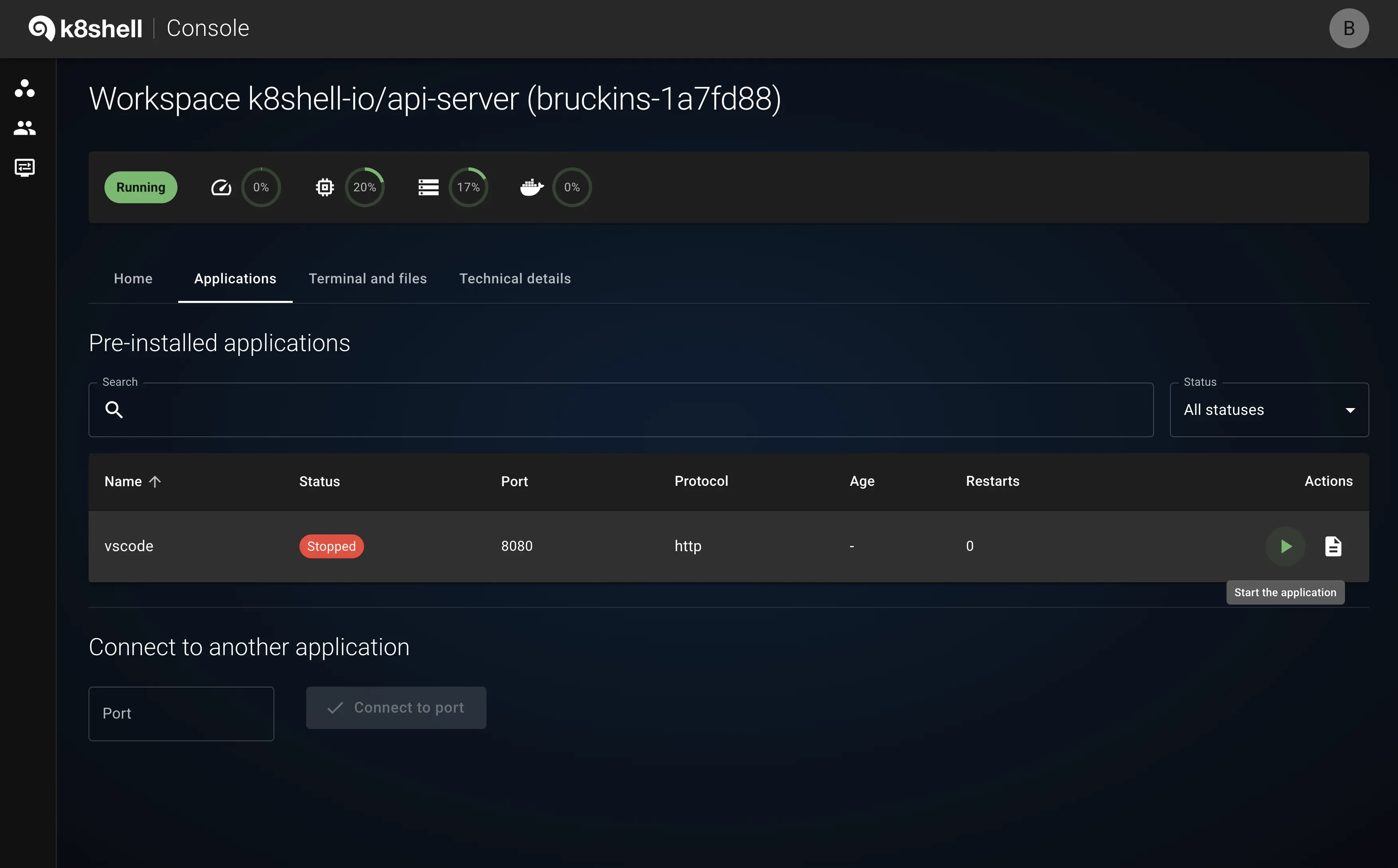
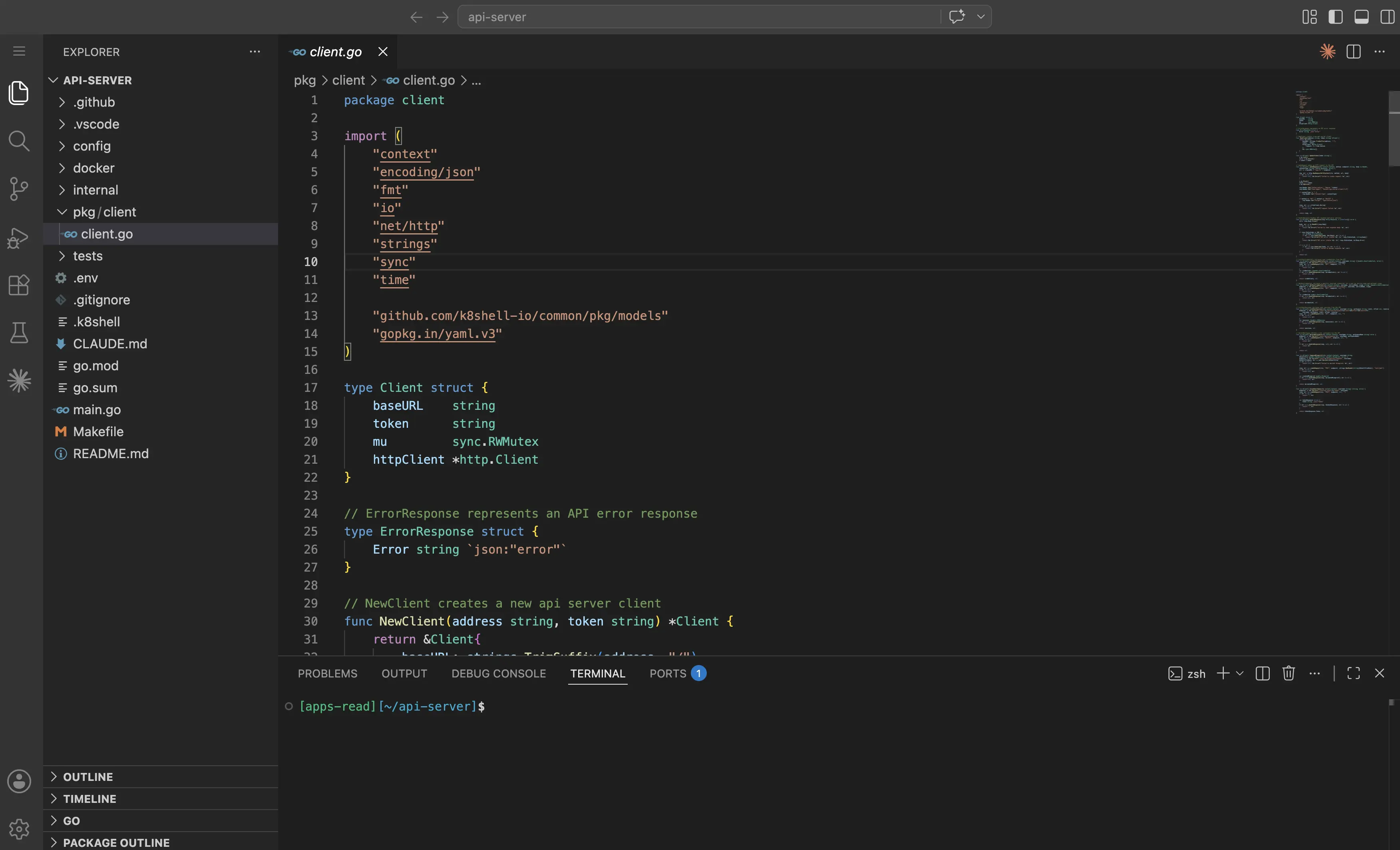
Application connectivity is handled by the reverse proxy in the API Server, which routes browser traffic to in-workspace processes. The example below shows VS Code accessed this way.
Terminal and Files
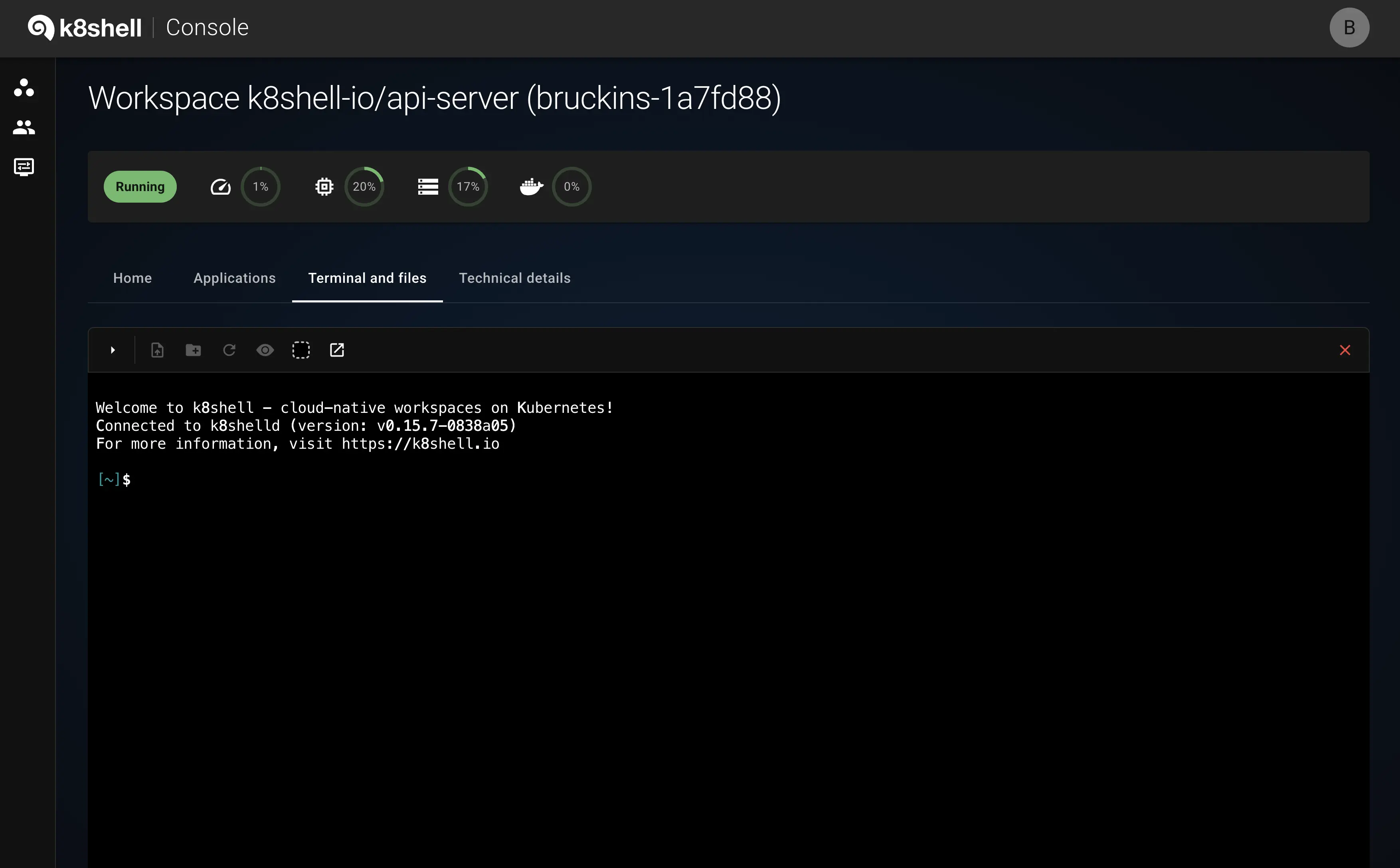
Click the terminal pane to focus it. Supported shortcuts: Ctrl+C ends a running program, Ctrl+D ends the session.
The file explorer lets you upload and download files. The current working directory is shown at the top; double-click a directory or right-click and select Set as work directory to change it, and use the arrow icon to navigate up. Topbar buttons let you create a new directory (inside the selected directory, or in the current working directory if nothing is selected) and upload files. You can also upload by dragging files onto a directory or into the empty space below. Right-click any file or directory and choose Delete to remove it. Toggle hidden files with the topbar button.